
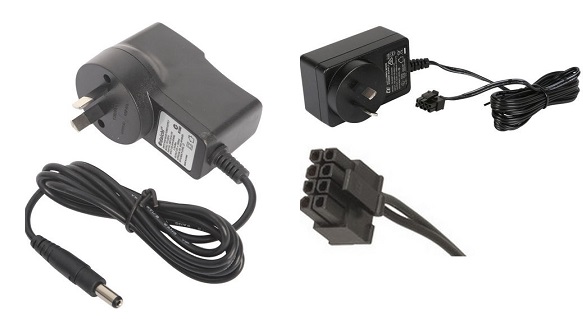
What the NBN Power Supply Actually Does
The NBN power supply is the silent workhorse behind every Fibre to the Premises (FTTP) connection. Housed in a compact brick‑style unit, it converts the 230 V AC from your wall socket into a steady 12 V DC that powers the Optical Network Terminal (ONT). Without that low‑voltage feed, the ONT can’t translate the light pulses travelling through the fibre into the internet signal that reaches your router. Most modern installations use a fixed‑cable adaptor that meets Australian safety standards, so you’ll rarely need to think about it—until it stops working.
Two Main Types of NBN Power Supplies
- Standard Power Supply (No Battery): This is the plain‑vanilla version that simply supplies 12 V DC to the ONT. It’s a plug‑and‑play unit with a barrel‑type connector (usually 2.5 mm) or an 8‑pin Molex plug and it typically delivers around 2.5 A. If the unit fails, the ONT will lose power and your internet drops instantly.
- Power Supply with Battery Backup: Older installations (pre‑mid‑2024) often include a built‑in battery. The backup battery—a 12 V, 7 Ah sealed lead‑acid (SLA) pack, kicks in the moment the mains supply flickers, keeping the ONT alive for up to five hours. The unit flashes a red “Replace Battery” light or emits a periodic beep when the battery can no longer hold a charge. Since mid‑2024, NBN has stopped shipping new backup units, but many renters and long‑term owners still have them in place.
Spotting a Faulty Power Supply
A failing power supply shows up in three common ways:
- No Internet at All: The ONT’s status LEDs stay dark or show a power‑loss symbol.
- Intermittent Drops: The connection flickers when the mains voltage dips, indicating the supply can’t maintain a steady output.
- Battery‑Related Alerts: A steady red light on the backup unit or a 15‑minute beep cadence signals a dead battery, not necessarily a bad adaptor. If you see any of these symptoms, unplug the unit from the wall, check the LED status and move on to the next step.
Replacing a Battery Backup Unit
- Gather the Correct Battery: Look for a 12 V, 7.0–7.2 Ah, 6‑cell VRLA (sealed lead‑acid) battery. EnerSys is the brand most often specified by NBN, but any equivalent meeting those specs will work.
- Power Down Safely: Unplug the power supply from the wall socket and disconnect the ONT’s power cable.
- Open the Housing: Most backup units have a few Phillips screws on the rear. Remove them, lift the cover and you’ll see the red (+) and black (–) battery leads.
- Swap the Battery: Pull the plugs straight off, insert the new battery’s leads in the same orientation and secure the connectors.
- Seal and Test: Replace the cover, tighten the screws, plug the unit back in and watch the status LEDs. The red “Replace Battery” light should disappear after a few minutes of normal operation.
When the Power Adapter Itself Needs Replacing
If the battery is healthy but the ONT still isn’t powering up, the adaptor may be at fault. Here’s how to choose a replacement:
- Voltage; Current: 12 V DC, 2.5 A output is the standard. Some newer ONTs may list a 3 A rating; check the label on your existing unit.
- Connector Type: Most Australian NBN power supplies use a 2.5 mm barrel jack, but a handful use an 8‑pin Molex. Verify the shape before you buy.
- Safety Certifications: Look for RCM or CE markings to ensure compliance with local electrical standards.
You can source a compatible adaptor from electronics retailers such as Campad Electronics, Wiltronics or the broader marketplace on Amazon and eBay. Keep the original unit’s model number handy; many suppliers will cross‑reference it to guarantee a perfect fit.
Step‑by‑Step Replacement of a Faulty Power Supply
- Unplug Everything: Disconnect the power supply from both the wall and the ONT.
- Label the Cables: Take a quick photo or use a sticky note to mark which cable goes where; this saves time when you reconnect.
- Remove the Old Unit: If it’s a fixed‑cable adaptor, unscrew the mounting bracket (if present) and pull the unit away from the wall.
- Install the New Unit: Attach the new adaptor to the bracket or wall mount, plug the DC cable into the ONT and then plug the mains side into the socket.
- Verify Operation: Power the ONT back on and watch the status LEDs. A solid green light typically means the ONT is receiving the correct 12 V feed.
Who’s Responsible for the Battery?
In rental properties, the landlord generally bears responsibility for maintaining the NBN battery backup. Tenants should report any red‑light warnings or audible beeps to the property manager promptly. If the lease includes a “maintenance of fixtures” clause, the tenant may be asked to arrange the replacement, but the cost usually falls to the owner.
Safety First: A Quick Checklist
- Always disconnect the unit from mains power before opening any housing.
- Use insulated tools to avoid accidental short circuits.
- Dispose of old SLA batteries at a designated recycling centre; they contain lead and must not end up in household waste.
- Keep the replacement battery away from extreme temperatures; store it in a cool, dry place until installation.
Bottom Line
Your NBN power supply is the lifeline that keeps the fibre connection alive. Whether you’re dealing with a plain 12 V adaptor or a legacy unit with a battery backup, understanding the specifications, recognizing the warning signs and following the correct replacement steps will minimise downtime and keep your internet humming. When in doubt, reference the user guide that came with your ONT or consult an accredited electrician—especially if you’re unsure about the connector type or the battery’s orientation. With the right parts and a little caution, you’ll be back online faster than a buffering video.